
Employee Onboarding Power Automate is one of the smartest ways to streamline HR processes using Microsoft 365 tools. Instead of manually collecting employee details, updating spreadsheets, sending welcome emails, and notifying departments, you can automate everything in minutes.
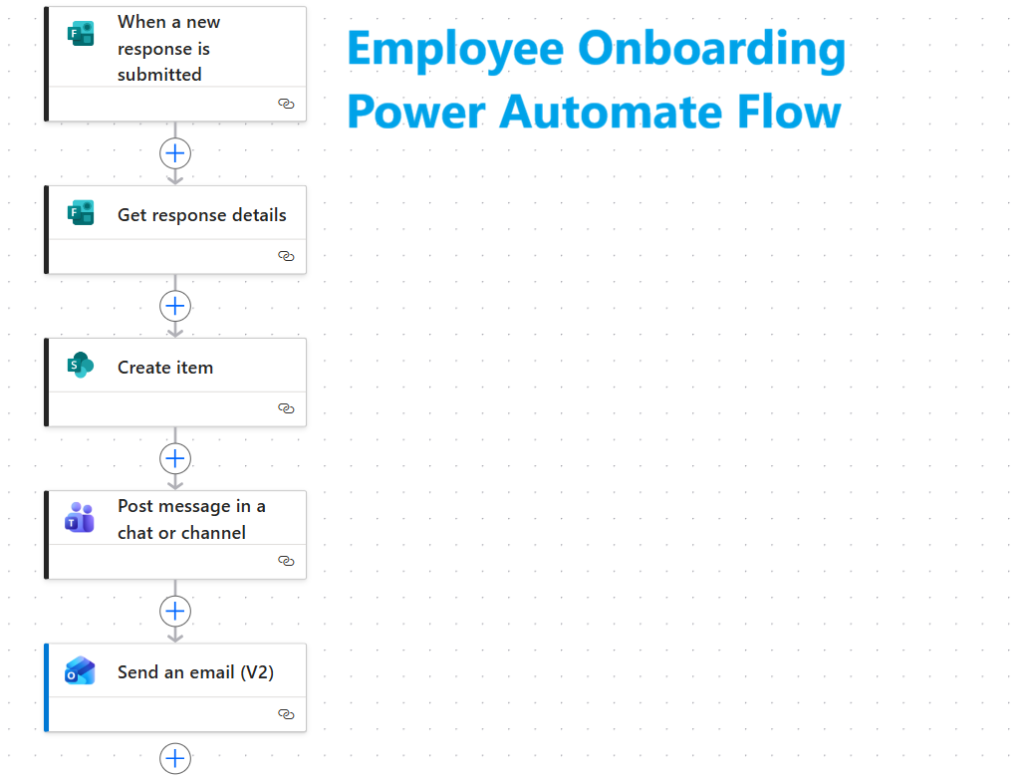
In this tutorial, you’ll build a beginner-friendly Employee Onboarding Power Automate flow using Microsoft Forms + SharePoint + Teams + Outlook.
When HR submits a form for a new employee, the flow will automatically:
✅ Create an employee record in SharePoint
✅ Notify HR in Microsoft Teams
✅ Send a welcome email to the employee
✅ Keep onboarding data organized centrally
No coding required.
🚀 What You’ll Achieve
Using this Employee Onboarding Power Automate tutorial, you’ll be able to:
- Automate HR onboarding tasks
- Remove repetitive manual work
- Improve employee experience
- Centralize onboarding records
- Notify teams instantly
- Use only Microsoft 365 tools
🧰 Prerequisites
Before starting this Employee Onboarding Power Automate flow, make sure you have:
- Microsoft 365 account
- Power Automate access
- Microsoft Forms access
- SharePoint site
- Microsoft Teams access
- Outlook account
🧱 Step-by-Step: Create Employee Onboarding Power Automate Flow
🔹 Step 1: Create a Microsoft Form
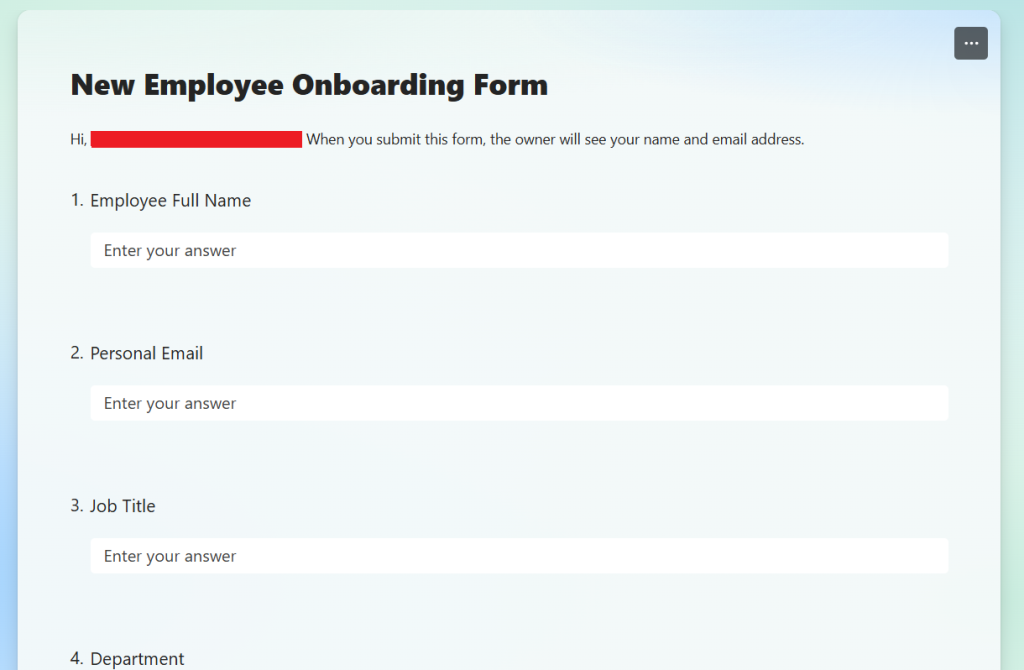
Go to Microsoft Forms and create a form called: New Employee Onboarding Form
Add these fields:
- Employee Full Name
- Personal Email
- Job Title
- Department
- Start Date
- Manager Name
This form will be used by HR to submit new employee details.
🔹 Step 2: Create a SharePoint List
Create a SharePoint list named: Employee Onboarding Tracker
Add columns:
- Title (Employee Name)
- Job Title
- Department
- Start Date
- Manager
- Status
This SharePoint list stores all onboarding requests.
🔹 Step 3: Create a New Power Automate Flow
Go to: make.powerautomate.com
Select: Create > Automated Cloud Flow
Flow Name: Employee Onboarding Power Automate Flow
Trigger: When a new response is submitted
- Choose your Microsoft Form.
Then add action: Get response details
- Select the same form.
- Select the Response Id from the dynamic content list by clicking the flash icon.
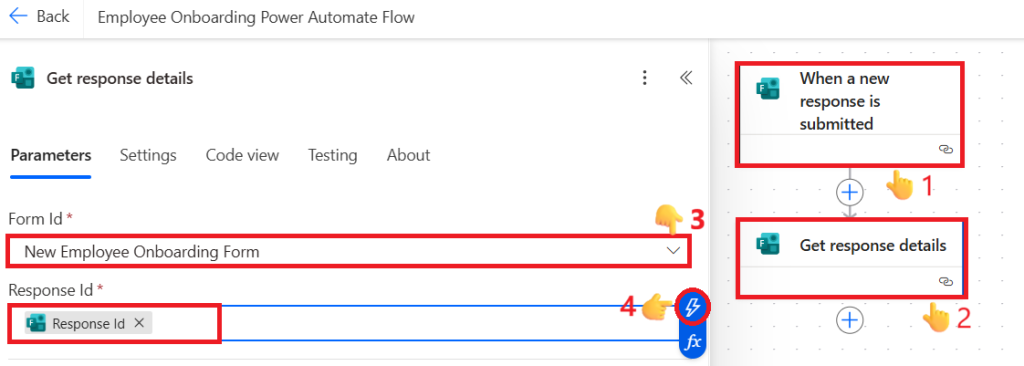
Now the flow can read submitted employee data.
🔹 Step 4: Create SharePoint Record
Add action: Create item (SharePoint)
Configure:
Site Address: Select the SharePoint site URL where the list was created.
List Name: Select the Employee Onboarding Tracker list.
Click on “Advanced Parameters” and check the list columns
Map the form fields:
- Title → Employee Full Name
- Email → Personal Email
- Job Title → Job Title
- Department → Department
- Start Date → Start Date
- Manager → Manager Name
- Status → Pending
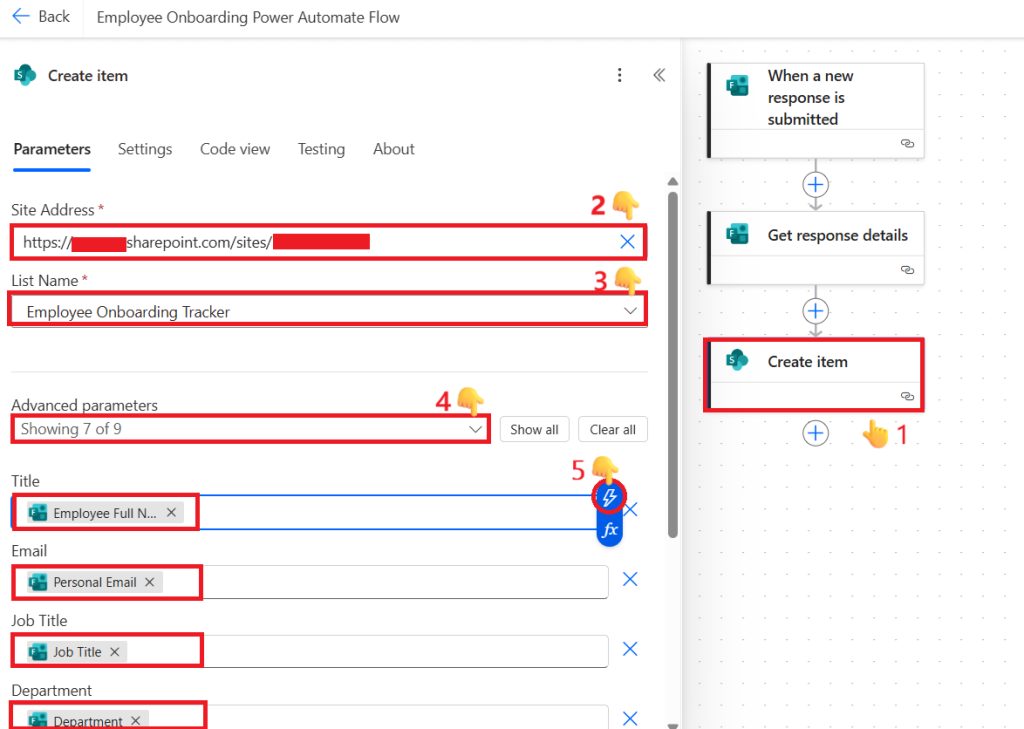
Now every form submission creates a SharePoint onboarding record automatically.
🔹 Step 5: Send Teams Notification + Welcome Email
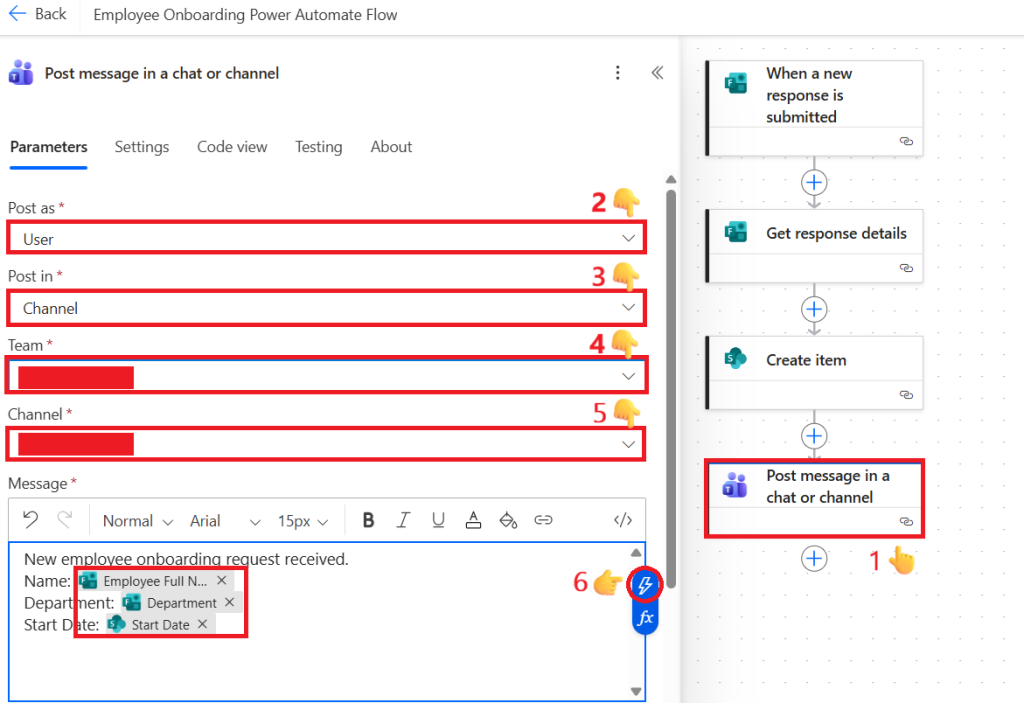
Add Action: Post message in a chat or channel
Configure:
- Post as: Select flow bot or user
- Post in: Select Channel or Group Chat
- Team: Select Team
- Channel: Select Channel
- Message:
New employee onboarding request received.
Name: Employee Full Name (add these from dynamic content list)
Department: Department
Start Date: Start Date
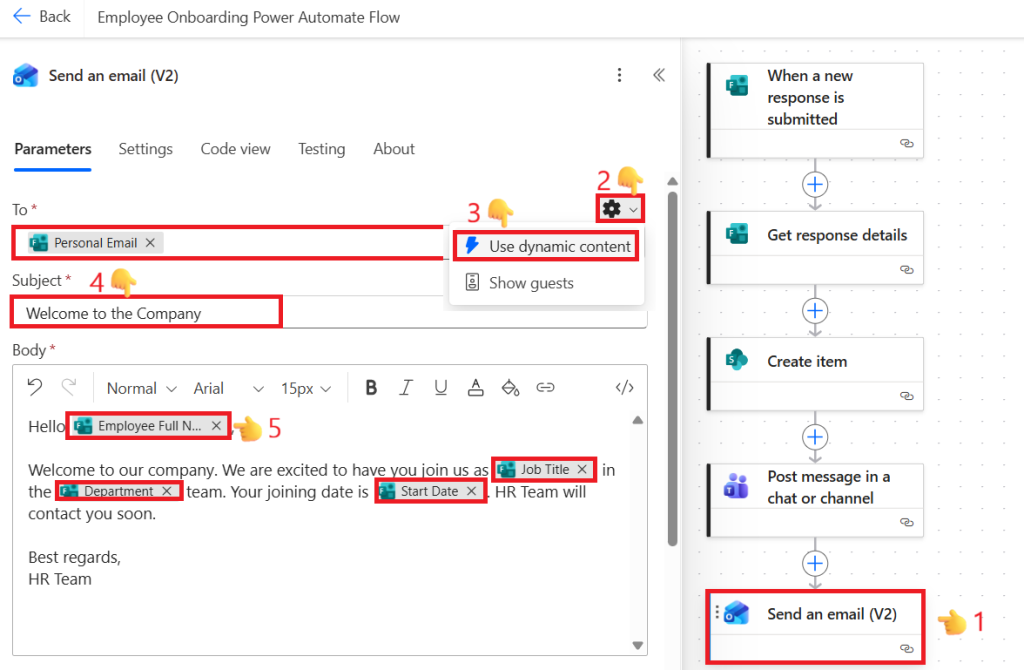
Add Action: Send an email (V2)
To: Employee Personal Email
Subject: Welcome to the Company
Body:
Hello Employee Name,

Welcome to our company. We are excited to have you join us as Job Title in the Department team. Your joining date is Start Date.HR Team will contact you soon.

Best regards,
HR Team
🔹 Result
After HR submits the form:
✅ SharePoint record created
✅ Teams notification sent
✅ Welcome email sent
✅ HR process becomes faster
📈 Bonus Tips
🔧 Improve the Flow Further
You can extend this Employee Onboarding Power Automate solution by adding:
- Approval from Manager
- Create Planner tasks
- Notify IT for laptop setup
- Create Teams account request
- Generate offer letter PDF
- Add reminder emails
🏁 Wrapping Up
This Employee Onboarding Power Automate flow is a perfect beginner-friendly HR automation project. It saves time, reduces errors, and gives new employees a better first experience.
By combining Microsoft Forms, SharePoint, Teams, and Outlook, you can build a professional onboarding system without writing code.
💡 Bonus Resources
- 🚀 Ultimate Daily Teams Quiz Bot Tutorial 2026 (Excel Version – No Premium Connectors)
- 🔄 10 Powerful Steps to Auto Create Calendar Events from SharePoint
- 🔄 Powerful Extract Email Data in Power Automate Tutorial for Effortless Automation
- 🔥 7 Powerful Steps to Build a Power Automate Approval flow for Reliable Document Review