
A Copilot Studio AI Agent helps businesses automate customer support, HR, IT, and other business processes using intelligent AI conversations with little or no coding.
Copilot Studio is not the same as Microsoft 365 Copilot. Microsoft 365 Copilot assists users in apps like Word, Excel, Outlook, and Teams, while Copilot Studio is used to build and customize your own AI agents.
In this tutorial, you will learn how to create, configure, test, and publish a Copilot Studio AI Agent from scratch.
What is a Copilot Studio AI Agent?
A Copilot Studio AI Agent is an intelligent conversational assistant created using Microsoft Copilot Studio.
Unlike traditional chatbots that follow fixed conversation paths, AI agents can:
- Understand natural language
- Answer questions intelligently
- Search organizational knowledge
- Execute Power Automate flows
- Connect with Microsoft 365
- Integrate with external APIs
- Perform business tasks automatically
Think of it as a digital employee available 24 hours a day.
Why Use a Copilot Studio AI Agent?
Businesses spend countless hours answering repetitive questions.
Examples include:
- HR answering leave policy questions
- IT resetting passwords
- Customer support checking order status
- Finance explaining invoices
- Sales qualifying leads
Instead of assigning employees to repetitive work, a Copilot Studio AI Agent can handle these conversations automatically.
Benefits include:
- Faster customer responses
- Reduced operational costs
- Improved employee productivity
- Consistent answers
- 24/7 availability
- Easy integration with Microsoft services
Prerequisites
Before creating your first Copilot Studio AI Agent, make sure you have:
- Microsoft 365 account
- Microsoft Copilot Studio license or trial
- Power Platform environment
- Basic understanding of Microsoft 365
- Power Automate (optional but recommended)
Step 1: Open Microsoft Copilot Studio
Sign in to Microsoft Copilot Studio.
After signing in:
- Click Agents on the left navigation pane.
- Click Create a blank agent.
- In the Name your agent text box, enter a meaningful name, such as IT Help Desk AI.
- Click the Create button.
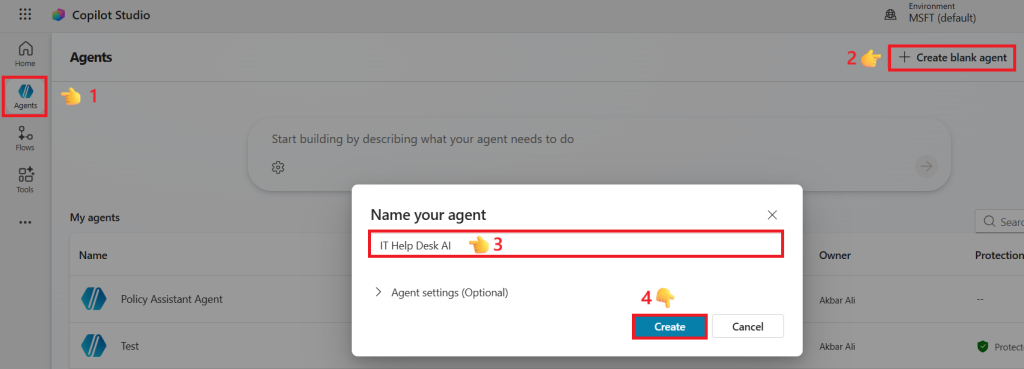
Your AI agent will now be created.
Step 2: Configure Your Copilot Studio AI Agent
After creating the agent, configure its identity.
Update:
- Description – Provides a brief summary of your AI agent’s purpose and what it is designed to help users with.
- Instructions – Defines how the AI agent should behave, respond, and handle user conversations.
- Conversation style – Determines how the AI interacts with users, such as being formal, friendly, or conversational.
- Default language – Sets the primary language the AI agent uses to communicate with users.
- Tone of responses – Controls the personality of the AI’s replies, such as professional, helpful, or empathetic.
Note: In the current version of Copilot Studio, Conversation style and Tone of responses are typically configured through the Instructions rather than as separate settings. If your tutorial targets the latest interface, you may want to mention this to avoid confusion.
Example:
Description:
Assists employees with IT-related questions and support requests.
Instructions:
You are an IT Help Desk AI assistant.

Use a friendly, professional, and concise tone.

Always greet users politely.

Provide step-by-step instructions.

If you do not know the answer, politely say so instead of guessing.

Escalate the conversation to a human agent if the issue cannot be resolved.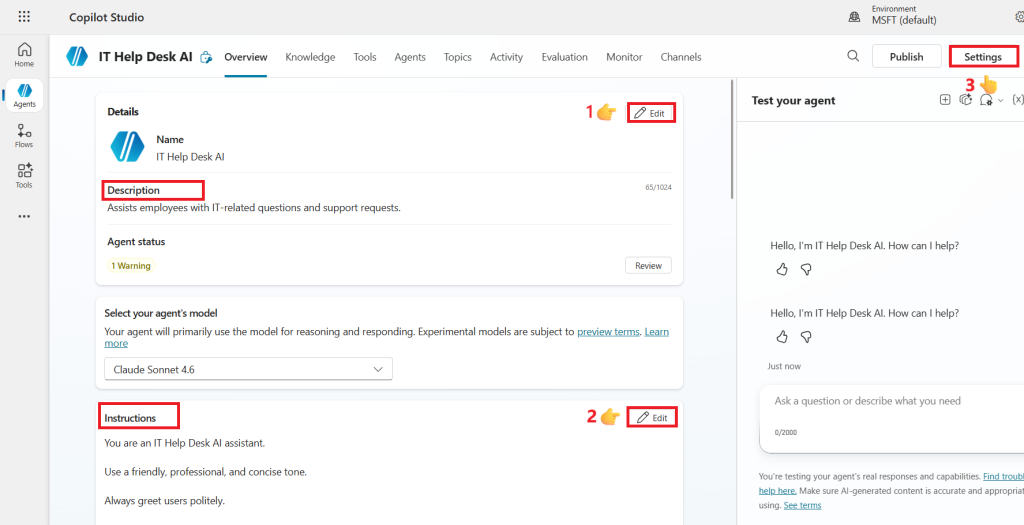
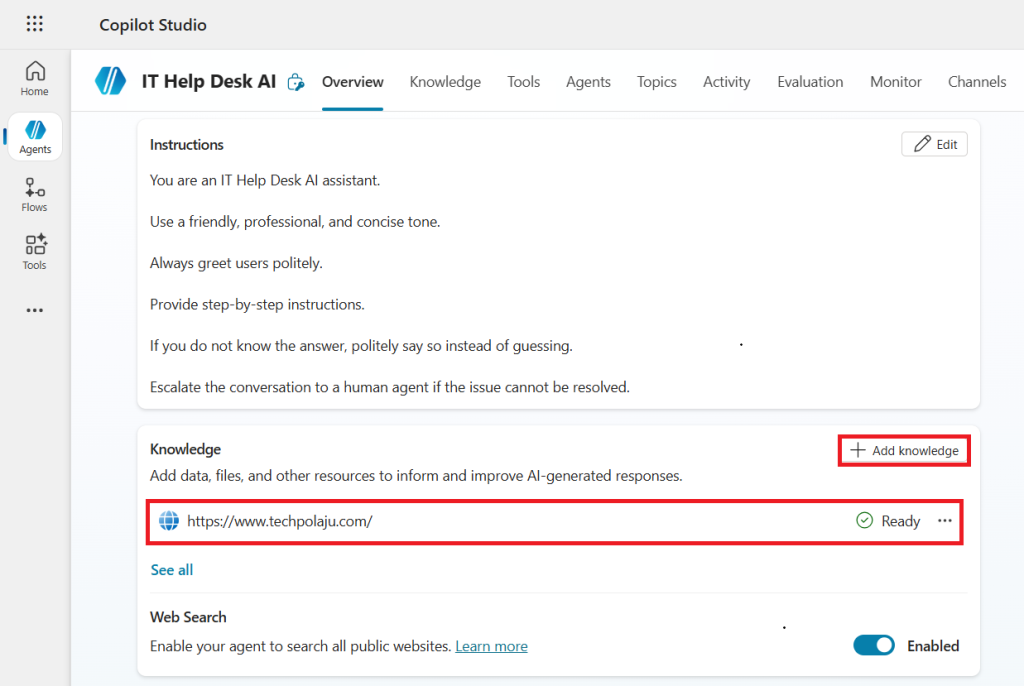
Step 3: Add Knowledge Sources
Knowledge sources are one of the most powerful features of a Copilot Studio AI Agent.
Instead of manually writing every response, you can connect existing information.
Supported knowledge sources include:
- SharePoint
- Public websites
- Uploaded documents
- Dataverse
- Microsoft Fabric
- Microsoft Graph connectors
For example:
Upload:
- Employee Handbook
- Company Policies
- Product Manuals
- FAQs
- Knowledge Base Articles
The AI agent automatically searches these documents when answering users.
Step 4: Create a Topic
Topics define how your Copilot Studio AI Agent responds to specific user requests.
- Click Add topic.
- In Name your topic, enter Office Hours and Work From Home.
- In Create a topic to…, enter:
Answer employee questions about office hours and the company’s work-from-home policy. - Click Create.
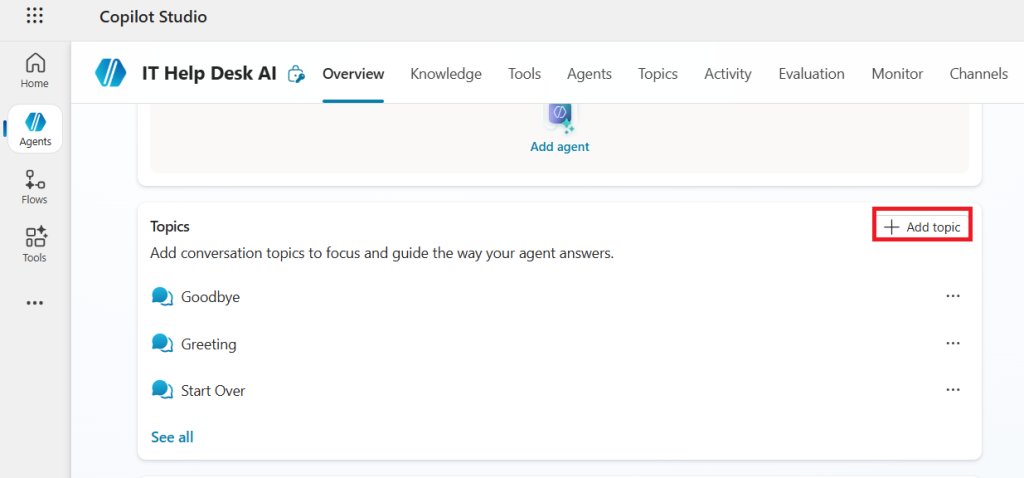
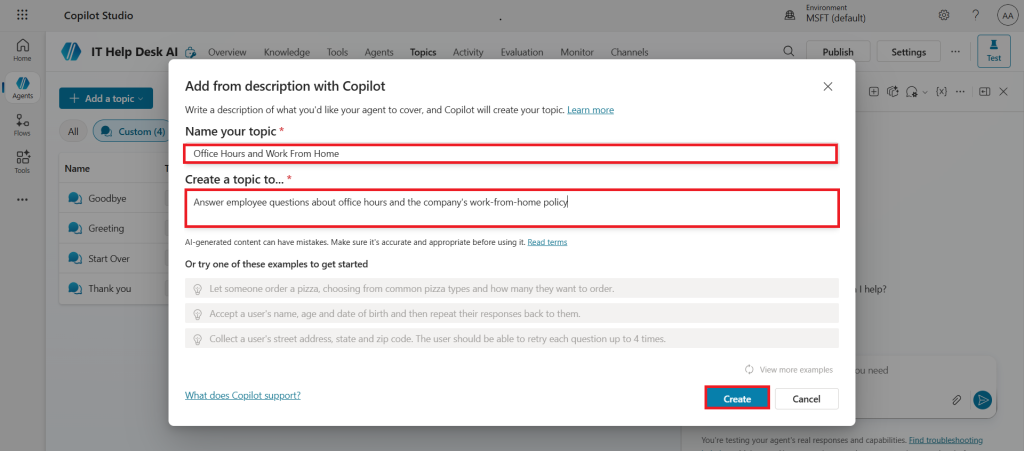
Copilot Studio uses AI to generate the topic, including the conversation flow and trigger phrases. After the topic is created, you can edit the trigger phrases and responses as needed.
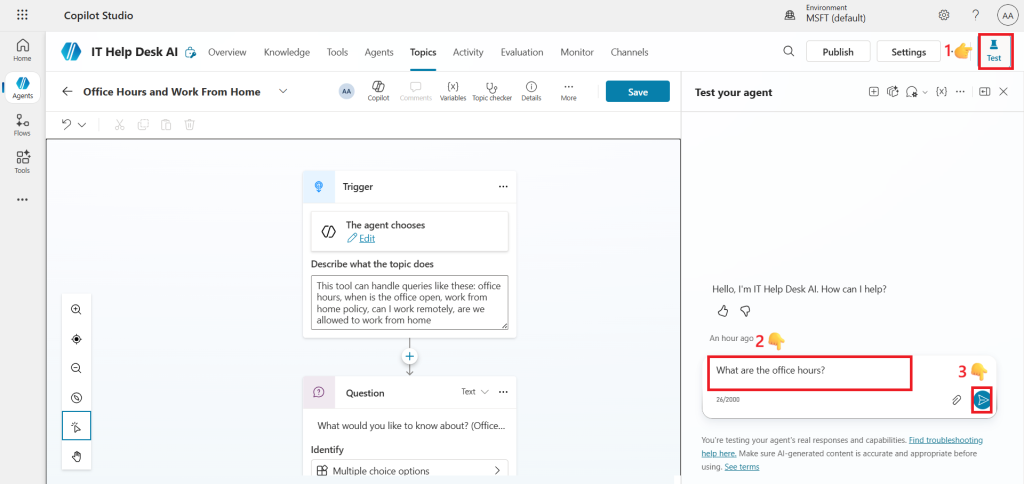
Copilot Studio uses AI to generate the conversation flow. With Generative Orchestration, the agent automatically determines when to use this topic based on its name and description, so you do not need to configure trigger phrases manually.
Example response:
Our standard office hours are Monday to Friday, 9:00 AM to 5:00 PM.
One of the biggest improvements in Microsoft Copilot Studio is Generative AI.
Instead of manually creating hundreds of conversation branches, the AI understands user intent.
For example, users might ask:
“I cannot remember my password.”
“I forgot my login.”
“Unable to sign in.”
“My account is locked.”
The Copilot Studio AI Agent recognizes that all of these requests relate to password assistance.
Step 5: Test Your Copilot Studio AI Agent
Before publishing, thoroughly test the AI agent.
Verify:
- Greeting messages
- Knowledge retrieval
- Topic triggering
- Variables
- Flow execution
- Error handling
- Conversation history
Continue improving responses until users receive accurate answers.
Step 6: Publish the AI Agent
Once testing is complete:
Click:
Publish
Microsoft makes the newest version available.
Step 7: Deploy Your Copilot Studio AI Agent
You can deploy your AI agent to multiple platforms.
Examples include:
- Microsoft Teams
- SharePoint
- Websites
- Mobile applications
- Microsoft 365
- Custom applications
This allows employees and customers to interact with the AI from anywhere.
Best Practices for Building a Copilot Studio AI Agent
To create an effective AI agent:
- Keep instructions clear and specific.
- Use high-quality knowledge sources.
- Organize topics logically.
- Test every conversation path.
- Update knowledge sources frequently.
- Review user feedback.
- Publish improvements regularly.
Common Mistakes to Avoid
Avoid these common issues when building a Copilot Studio AI Agent:
- Adding too many overlapping topics
- Poorly written instructions
- Outdated knowledge documents
- Ignoring testing
- Creating overly complex conversation flows
- Not handling unexpected user input
- Forgetting fallback responses
Frequently Asked Questions
Is Copilot Studio AI Agent different from a chatbot?
Yes.
Traditional chatbots follow predefined conversation paths.
A Copilot Studio AI Agent uses Generative AI to understand natural language and provide more intelligent responses.
Can Copilot Studio AI Agent use Power Automate?
Yes.
It integrates directly with Power Automate, allowing your AI agent to automate business processes.
Does Copilot Studio AI Agent require coding?
No.
Most AI agents can be built using the visual designer.
Developers can also extend functionality using APIs, Power Automate, and custom connectors.
Can Copilot Studio AI Agent connect to SharePoint?
Yes.
It can retrieve information from SharePoint libraries, lists, and documents.
Can Copilot Studio AI Agent integrate with Microsoft Teams?
Yes.
Publishing directly to Microsoft Teams is one of the most common deployment scenarios.
Conclusion
A Copilot Studio AI Agent is one of the easiest and most powerful ways to bring AI into your business. With Microsoft Copilot Studio, you can create intelligent conversational assistants that answer questions, automate workflows, connect with Microsoft 365, and improve productivity across your organization.
Whether you are building an HR assistant, IT helpdesk, customer support bot, or internal knowledge assistant, Copilot Studio provides the tools to build enterprise-grade AI solutions without extensive coding.
Start with a simple AI agent, connect your business knowledge, automate tasks with Power Automate, and continuously improve the experience based on user feedback.
As organizations increasingly adopt AI, learning how to build a Copilot Studio AI Agent is a valuable skill for Microsoft 365 administrators, Power Platform developers, and business professionals alike.
💡 Power automate Resources
- 🚀 Ultimate Daily Teams Quiz Bot Tutorial 2026 (Excel Version – No Premium Connectors)
- 🔄 10 Powerful Steps to Auto Create Calendar Events from SharePoint
- 🔄 Powerful Extract Email Data in Power Automate Tutorial for Effortless Automation
- 🔥 7 Powerful Steps to Build a Power Automate Approval flow for Reliable Document Review