
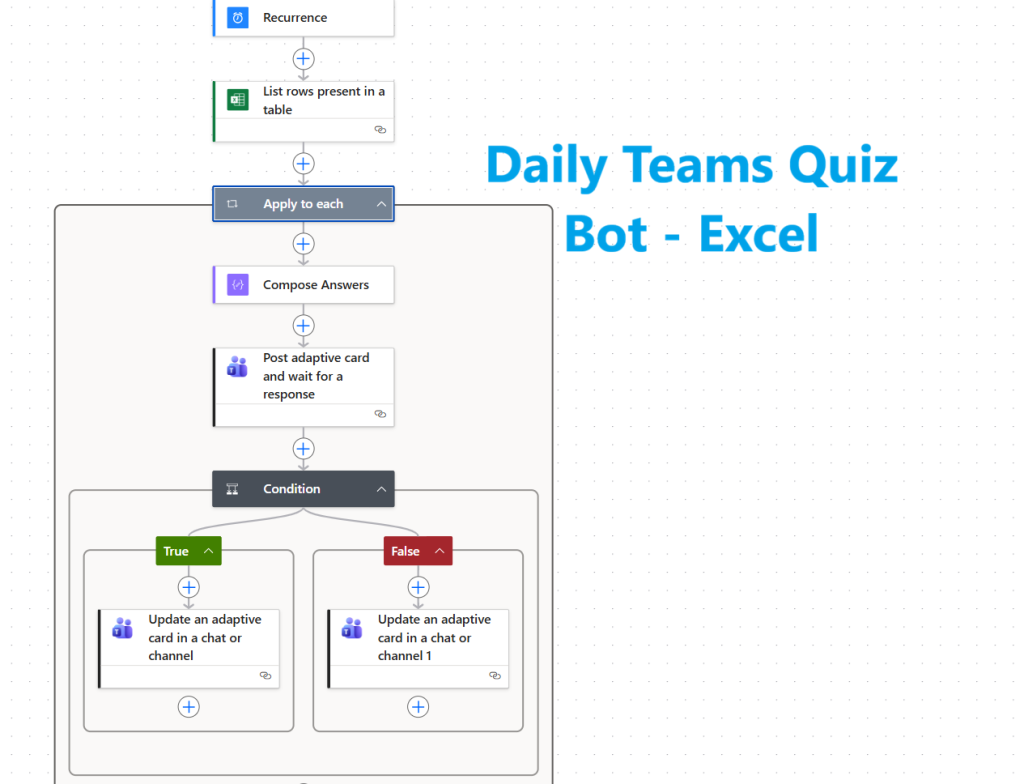
In this updated Daily Teams Quiz Bot Tutorial 2026, you’ll learn how to build the same automated Microsoft Teams quiz bot — but using an Excel file instead of the OpenTDB API.
This version is perfect if you want:
- Full control over quiz questions ✍️
- No dependency on external APIs 🌐
- No premium Power Automate connectors 💰
- Easy editing by HR or non-technical users
The quiz still runs automatically every morning at 8 AM, posts an interactive Adaptive Card to Microsoft Teams, and instantly tells users whether their answer is correct.
❓ Why Use Excel Instead of an API?
While APIs like OpenTDB are powerful, Excel offers some big advantages:
- Questions can be updated anytime without touching the flow
- Non-technical users can manage content
- Answers and winners can be stored in the same file
- Uses standard Power Automate connectors only
This makes Excel ideal for internal quizzes, onboarding, training, or company culture initiatives.
🔧 What You Need Before You Begin
To follow this Daily Teams Quiz Bot Tutorial 2026, make sure you have:
- Microsoft 365 account
- Microsoft Teams access
- Power Automate access
- Excel file stored in OneDrive or SharePoint
✅ Step-by-Step Guide: Daily Teams Quiz Bot Tutorial 2025
📊 Step 1: Prepare the Excel Quiz File
Create an Excel file and store it in OneDrive or SharePoint.
Excel Table Structure
Convert your data into a Table and name it QuizTable.
| Question | Option1 | Option2 | Option3 | Option4 | CorrectAnswer |
|---|---|---|---|---|---|
| Capital of France? | Paris | Rome | Berlin | Madrid | Paris |
| Capital of China? | Madrid | Beijing | Helsinki | Islamabad | Beijing |
| Capital of Finland? | Helsinki | Riyadh | Berlin | London | Helsinki |
| Capital of Norway? | Berlin | Oslo | London | Rome | Oslo |
Important notes:
- All options must be filled
- Correct Answer must exactly match one of the options
- Table format is mandatory
🔁 Step 2: Create a Scheduled Flow (8 AM Daily)
- Go to make.powerautomate.com
- Select Create > Scheduled Cloud Flow
- Name the flow:
Daily Teams Quiz Bot - Excel - Set the schedule to every day at 8:00 AM

🟢 This trigger starts your daily quiz flow automatically each morning.
🌐 Step 3: Read Quiz Questions from Excel
Add List rows present in a table action.
Configuration:
- Location: OneDrive or SharePoint
- Document Library: OneDrive
- File: Your Excel quiz file
- Table: QuizTable
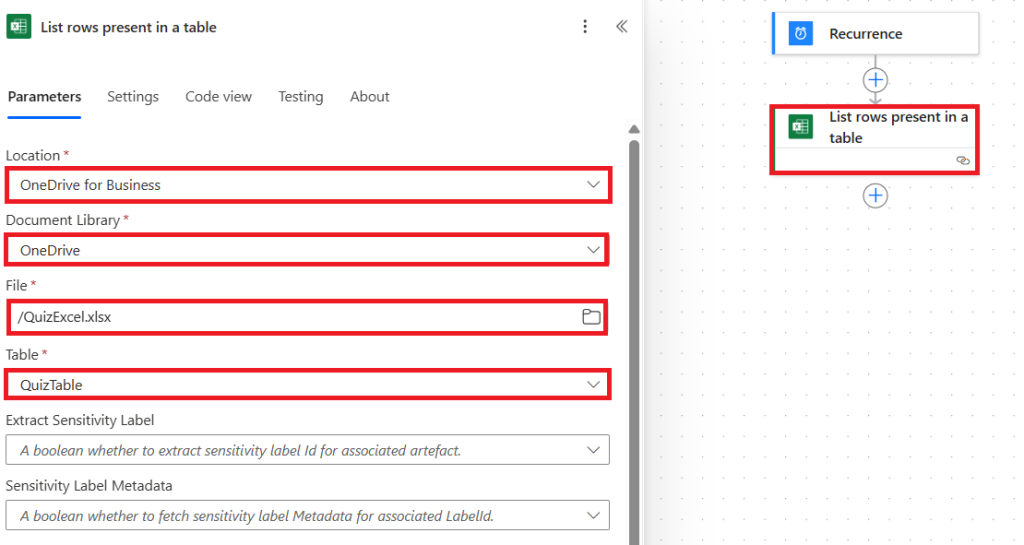
This action fetches all quiz questions from Excel.
🔁 Step 3: Apply to Each (Loop Through Questions)
Add “Apply to each” action.
Select an output from previous steps: Copy and paste the following expression, or select “body/value” from the dynamic list.
@{outputs('List_rows_present_in_a_table')?['body/value']}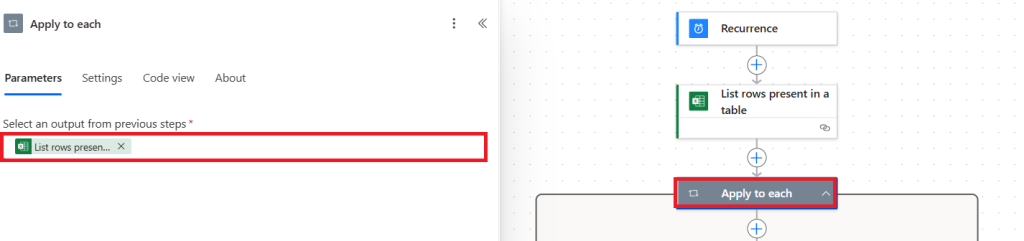
Each iteration represents one quiz question.
🧩 Step 4: Compose – Answers
Inside “Apply to each” action, add “Compose” action and rename it to “Compose Answers”.
Inputs: Copy and paste the following JSON.
[
{
"title": "@{items('Apply_to_each')?['Option1']}",
"value": "@{items('Apply_to_each')?['Option1']}"
},
{
"title": "@{items('Apply_to_each')?['Option2']}",
"value": "@{items('Apply_to_each')?['Option2']}"
},
{
"title": "@{items('Apply_to_each')?['Option3']}",
"value": "@{items('Apply_to_each')?['Option3']}"
},
{
"title": "@{items('Apply_to_each')?['Option4']}",
"value": "@{items('Apply_to_each')?['Option4']}"
}
]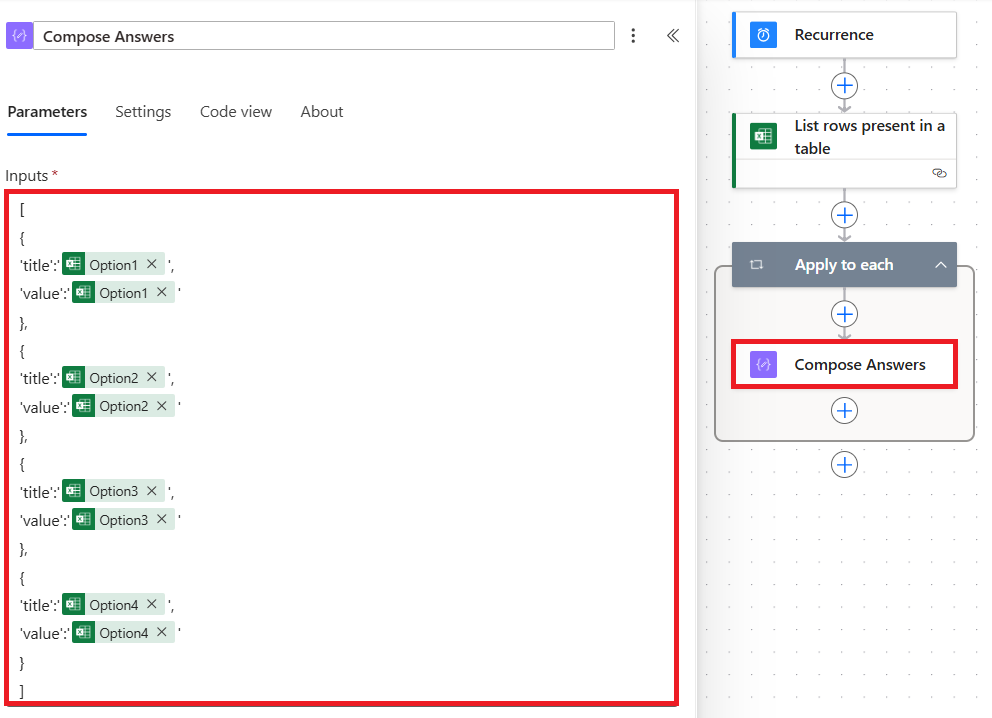
This dynamically builds answer choices from Excel.
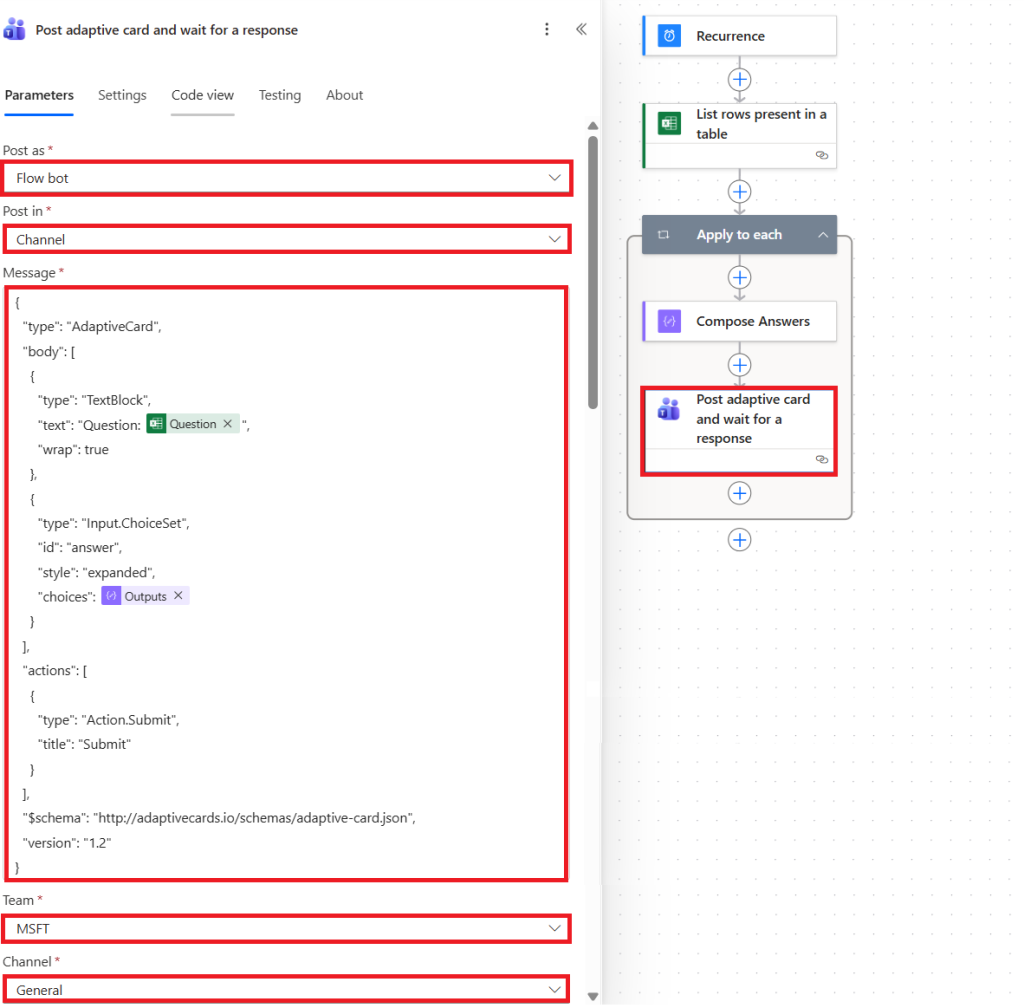
💬 Step 5: Post Adaptive Card to Teams
Add “Post adaptive card and wait for a response” inside the loop.
Configuration:
Post as: Flow bot
Post in: Channel
Message:
{
"type": "AdaptiveCard",
"body": [
{
"type": "TextBlock",
"text": "Question: @{items('Apply_to_each')?['Question']}",
"wrap": true
},
{
"type": "Input.ChoiceSet",
"id": "answer",
"style": "expanded",
"choices": @{outputs('Compose_Answers')}
}
],
"actions": [
{
"type": "Action.Submit",
"title": "Submit"
}
],
"$schema": "http://adaptivecards.io/schemas/adaptive-card.json",
"version": "1.2"
}
Team: Select team from the dropdown
Channel: Select channel from the dropdown
❓ Step 6: Condition – Check User’s Answer
Add a “Condition” action and set the following.
Left value
@{body('Post_adaptive_card_and_wait_for_a_response')?['data/answer']}Operator
is equal toRight value
@{items('Apply_to_each')?['CorrectAnswer']}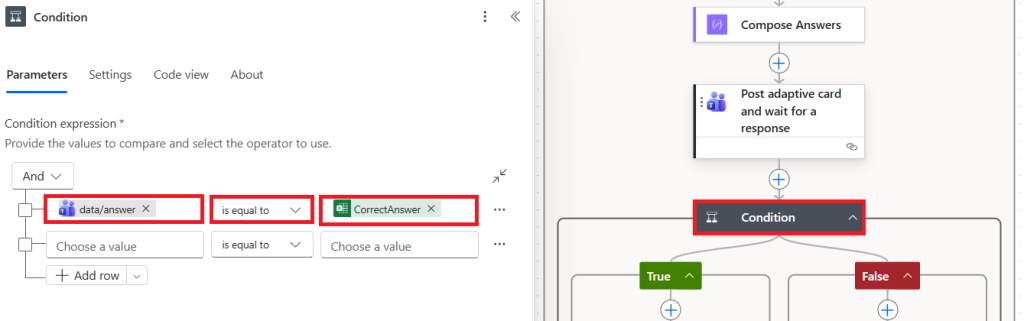
🏆 Step 7: IF TRUE – Update Adaptive Card (Correct Answer)
On the TRUE side of the condition, add the action “Update an adaptive card in a chat or channel” and copy the following JSON in the “Adaptive Card” field.
Adaptive Card:
{
  "type": "AdaptiveCard",
  "body": [
    {
      "type": "TextBlock",
      "text": "🎉 This question has been answered correctly by @{body('Post_adaptive_card_and_wait_for_a_response')?['responder/displayName']}!",
      "wrap": true
    },
    {
      "type": "TextBlock",
      "text": "Question: @{items('Apply_to_each')?['Question']}",
      "wrap": true
    },
    {
      "type": "TextBlock",
      "text": "Correct answer: @{body('Post_adaptive_card_and_wait_for_a_response')?['data/answer']}",
      "wrap": true
    }
  ],
  "$schema": "http://adaptivecards.io/schemas/adaptive-card.json",
  "version": "1.2"
}
For Message ID: copy the following expression if you cannot find it in the dynamic list
@{body('Post_adaptive_card_and_wait_for_a_response')['messageId']}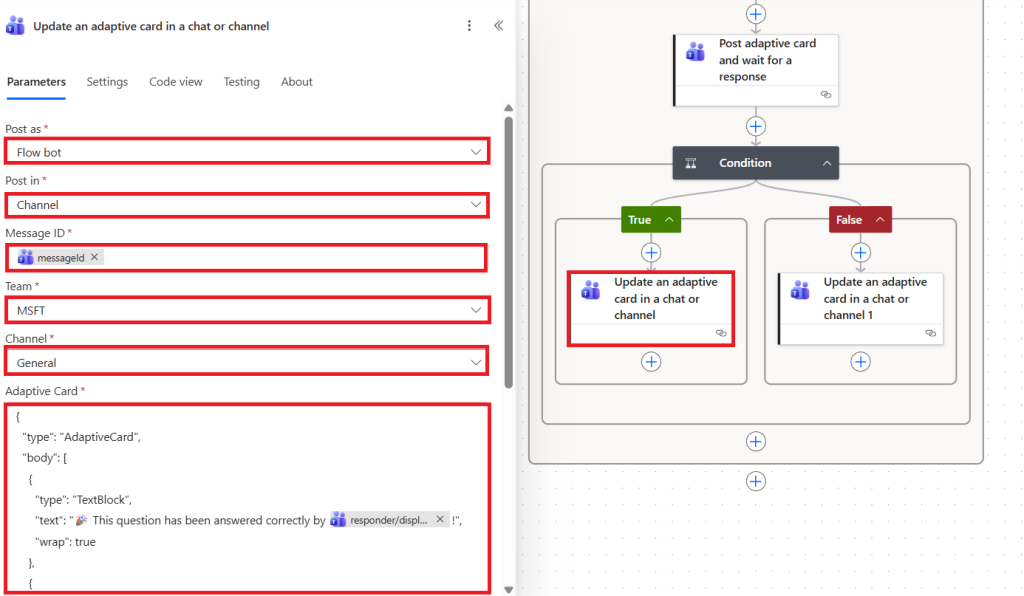
❌ Step 8: IF FALSE – Update Adaptive Card (Incorrect Answer)
On the FALSE side of the condition, add another action “Update an adaptive card in a chat or channel” and copy the following JSON in the “Adaptive Card” field.
{
  "type": "AdaptiveCard",
  "body": [
    {
      "type": "TextBlock",
      "text": "❌ @{body('Post_adaptive_card_and_wait_for_a_response')?['responder/displayName']} answered this question incorrectly.",
      "wrap": true
    },
    {
      "type": "TextBlock",
      "text": "Question: @{items('Apply_to_each')?['Question']}",
      "wrap": true
    },
    {
      "type": "TextBlock",
      "text": "Answer: @{body('Post_adaptive_card_and_wait_for_a_response')?['data/answer']}",
      "wrap": true
    }
  ],
  "$schema": "http://adaptivecards.io/schemas/adaptive-card.json",
  "version": "1.2"
}
✅ Final Thoughts
This Daily Teams Quiz Bot (Excel-based) is a simple, cost-effective way to run automated quizzes in Microsoft Teams using Power Automate and Adaptive Cards.
By keeping questions in Excel, you get full control over content without premium connectors or complex setup. It’s easy to maintain, scalable, and perfect for engagement, learning, or internal challenges.
An Excel-driven quiz bot keeps your automation simple, flexible, and future-proof.
💡 Bonus Resources
- 🔄 10 Powerful Steps to Auto Create Calendar Events from SharePoint
- 🔄 Powerful Extract Email Data in Power Automate Tutorial for Effortless Automation
- 🔥 7 Powerful Steps to Build a Power Automate Approval flow for Reliable Document Review
- 🚀 5-Step Effortless Tutorial for File Conversion and Sharing
- 📅 Powerful Automated Contract Renewal Alert in 11 Steps